Applications & accounts
Discover connectors, configure connections, test access, preview accounts and run aggregation.
 Limosaidentity
FULL AI SUPPORT
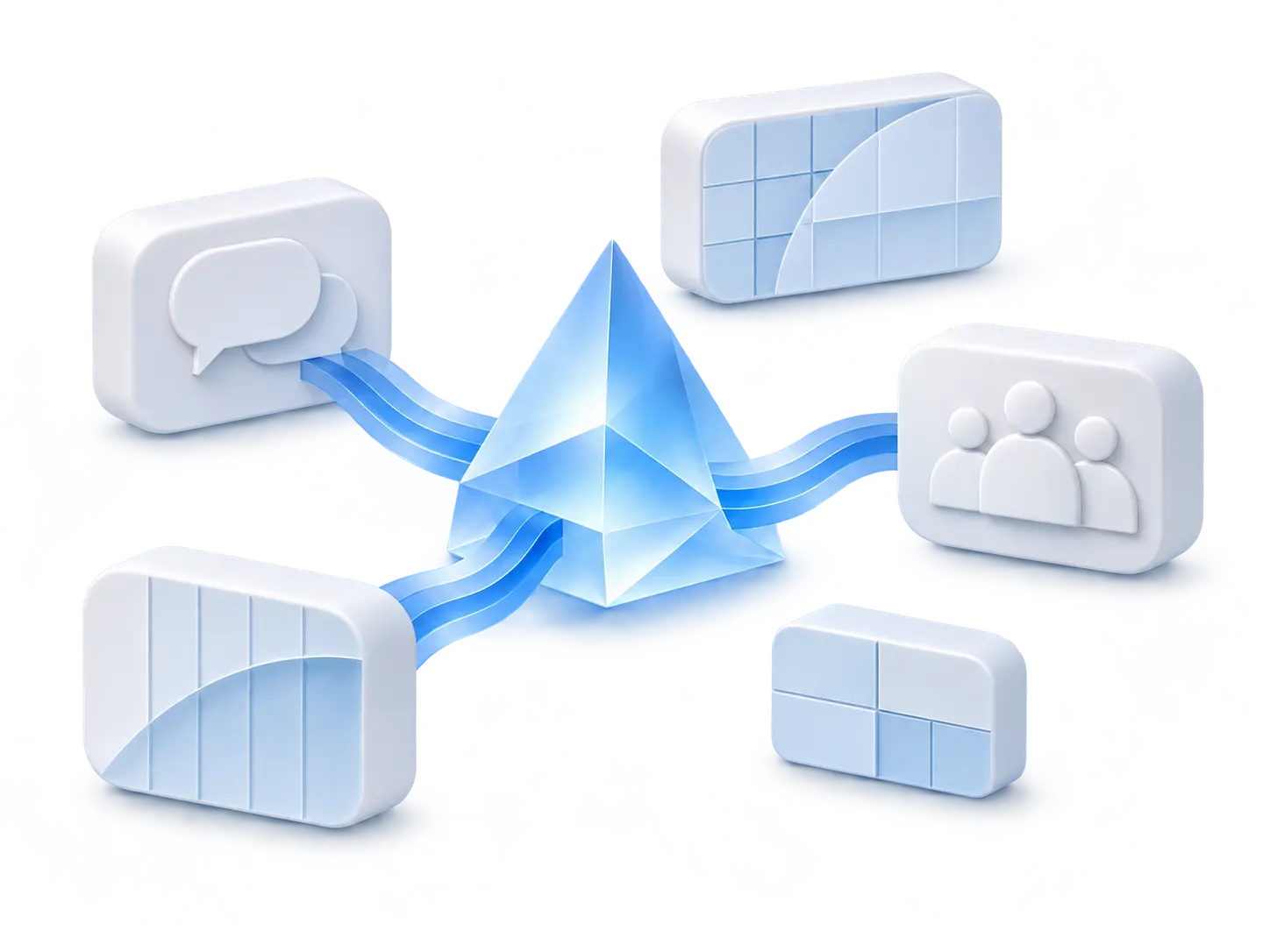
Configure applications, shape access policies, complete assigned work and investigate outcomes. Limosa exposes its full management interface to compatible AI assistants through the Model Context Protocol (MCP).
AI ACROSS THE WHOLE WORKFLOW
Every registered management operation is discoverable and callable by AI. New registered operations become available through the same interface.
Discover connectors, configure connections, test access, preview accounts and run aggregation.
Configure identity attributes, source mappings and correlation; explore connected account inventory.
Manage roles and assignments, configure access workflows and maintain governance settings.
Submit requests, inspect assigned approval context and carry out authorized decisions.
Configure certification, complete assigned reviews and follow manual fulfillment work.
Run supported jobs, follow progress, query reports and investigate changes and provisioning outcomes.
A compatible AI assistant discovers available operations and acts on your instructions.
Your tenant and current permissions determine what the assistant can do.
Connections, mappings, roles and workflows
Requests, reviews, tasks and fulfillment
Inventory, reports and operation history
Conceptual architecture. Bulk work runs through background jobs; approvals, execution results and observed access remain separate.
The assistant uses the connected user’s current permissions. Ownership, reviewer eligibility, tenant isolation and configured approval rules still apply.
Sign-in and consent remain interactive. External provider setup and credentials are prerequisites; connecting an assistant does not grant rights in those systems.
Starting a task or approving access does not prove provisioning succeeded. Assistants can follow job progress and inspect the resulting evidence.
START WITH THE WORK YOU NEED DONE
“Help me connect our HR source and map worker records to identities.”
Your assistant can discover the connector, gather settings, validate configuration and test the saved connection before importing.
Explore the connectors →“Show my pending access reviews and the context for each decision.”
Your assistant can retrieve your assigned work and submit permitted decisions through the same governed operations as the workspace.
Explore access reviews →“Find failed provisioning operations and help me understand what happened.”
Your assistant can read task progress and operation histories, then help you distinguish an approval from the actual target outcome.
Explore the architecture →Illustrative requests, not a transcript or autonomous execution guarantee. Available actions follow the connected user’s permissions and the application’s configured capabilities.
START WITH YOUR AI ASSISTANT
Add Limosa to your assistant, then sign in when prompted. No existing Limosa account or workspace ID needed.
Use an email magic link, or Google or GitHub when offered. Create or choose your own workspace and approve the connection. Your assistant can then help you configure the platform.
Choose your assistant →REMOTE MCP SERVER URL
https://identity.limosa.io/mcp
An account is created through sign-in; data access always requires authentication and your explicit approval. Assistant plans and organization policies may restrict custom connections.
CONNECT THE ASSISTANT YOU ALREADY USE
Add the public URL above using OAuth and Streamable HTTP. When Limosa opens, sign in, select or create a workspace, then choose Approve & connect. New users can complete these steps without registering beforehand.
Custom MCP availability depends on your account and workspace permissions. Your administrator may need to create or approve the connection.
Limosa supports automatic client registration; choose that option rather than Claude’s published-identity option. Organization permissions apply.
This is an agent setup path, not a URL pasted into an ordinary Copilot chat. Copilot Studio access, licensing and administrator policies apply.
Client instructions checked November 13, 2026. Menus and availability can change; the linked vendor guides are the source for current client requirements. These are setup instructions, not a claim that every client or plan has been certified.
Open API & AI connections → AI assistant (MCP) in that workspace to copy its dedicated URL. It uses that workspace’s sign-in and access policies. The common URL is for creating or connecting workspaces you manage; it does not grant membership in somebody else’s organization.
“Show me my workspace context, then help me configure my first application. Explain the settings I need and test the connection before importing.”
Your assistant can discover supported operations and guide configuration. You provide any external system permissions and credentials that the integration needs. You can revoke access from API & AI connections in your workspace.
AI IN HOW WE BUILD
AI is the main driver behind our fast development cycles.
We use AI to turn product ideas into implementation, tests and improvements. Human direction, review and validation remain part of the process.
The result is a product that can evolve quickly around real governance needs. Follow the release journal to see the concrete capabilities each update brings.
See what we’re building →A FEW PRACTICAL DETAILS
Yes. The management interface supports reads and writes through MCP, including connector configuration, identity mappings, roles, workflows and governance administration. Each action is subject to the same validation and authorization as the web interface.
The integration connects your compatible AI assistant to Limosa through MCP. Your assistant supplies the conversational experience; Limosa supplies the governed operations and workflow guidance.
No. Your current permissions and configured approval policies remain authoritative. Sign-in, consent and external provider authorization still require the appropriate people and credentials.
AI is the main driver behind our fast development cycles, helping turn ideas into implementation, tests and improvements. Human direction, review and validation remain part of the process. The release journal documents concrete changes without promising a fixed delivery cadence.
YOUR NEXT STEP
Explore the public demo or bring your applications and governance questions to a guided conversation.