
PRODUCT WALKTHROUGHS
See the whole process.
Understand each decision.
Three illustrative scenarios using John Doe and an example organization. The diagrams explain configured workflows; screenshots show the actual interface with synthetic records.
01 / JOINER–MOVER–LEAVER
John joins Finance.
His responsibilities change.
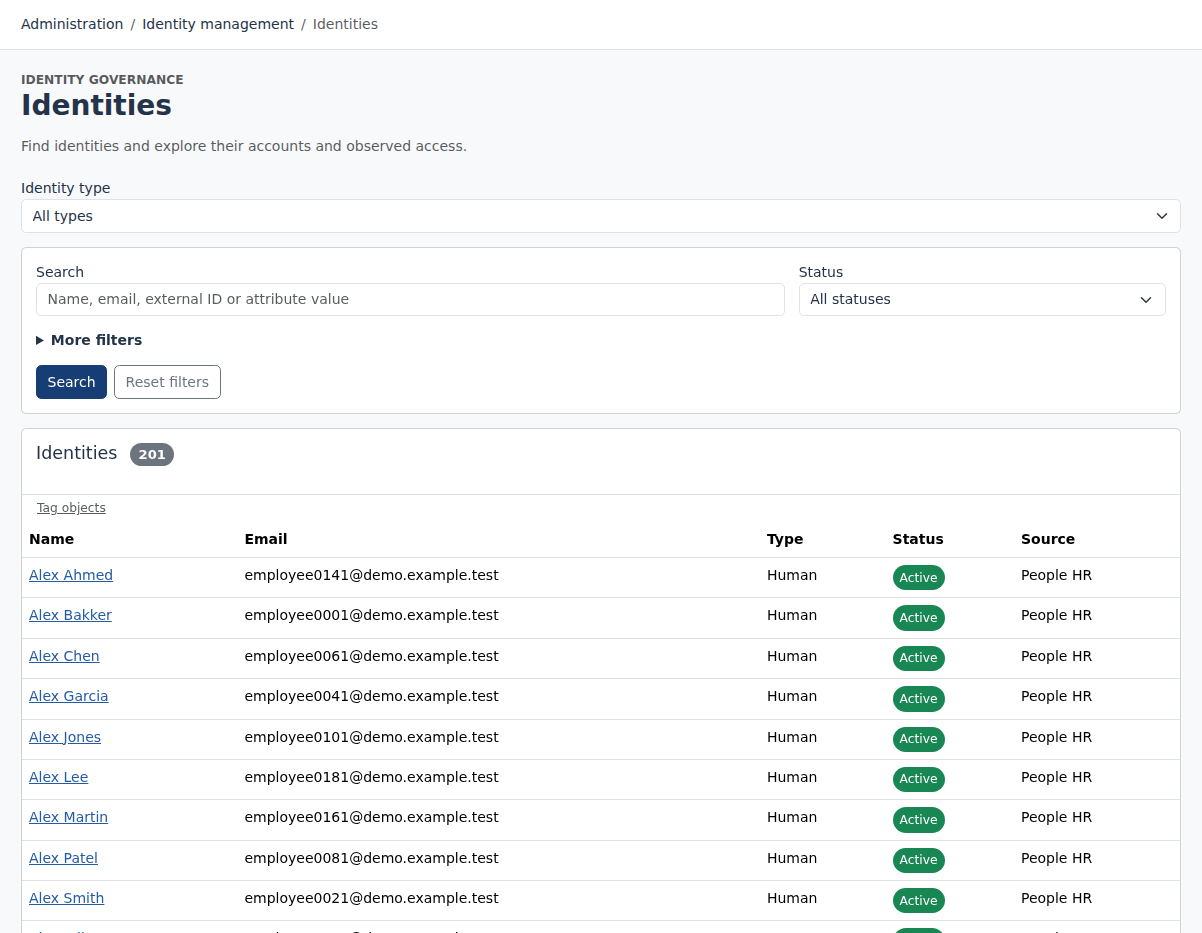
Begin with an authoritative workforce source and a small set of applications. Configure the policies below before running the scenario.
Import and identify.
Import John’s worker record. Map his department and status, then correlate existing accounts using stable identifiers. Resolve unmatched records before proceeding.
Inspect: source records, mapped attributes and account linksEvaluate the access policy.
Run identity refresh and configured role evaluation. A Finance rule can assign a business role; its entitlements determine the required account types.
Inspect: intended assignments and their sourcesHandle a move.
When John changes departments, import the new data and re-evaluate configured rules. Check whether independent assignments still justify any old access, then follow resulting fulfillment work.
Inspect: changed assignments and target operationsApply the leaver policy.
A lifecycle status transition can trigger configured disable or delete actions. Investigate failures and verify target outcomes; a source status alone is not proof that access was removed.
Inspect: lifecycle actions, operation history and observations
02 / ACCESS REQUEST TO FULFILLMENT
John needs a business role.
Follow the request beyond approval.
Request
Choose eligible access and provide context
Decide
Apply workflow and conflict checks
Execute
Track connector work or manual tasks
Verify
Inspect the target evidence
Request eligible access.
John selects a requestable role. The request retains the recipient, requested access and requester. Configured segregation-of-duties checks can reject conflicting grants.
Review with context.
The assigned approver reads the request and role contents, then records a decision. Workflow progression and final approval remain distinct from fulfillment.
Follow each application.
Inspect the resulting operation or manual task for each affected target. Resolve missing account selection or failed execution, and inspect verification before concluding that access is present.
The screenshot illustrates request configuration, not a claim that this example request was executed against a live provider.
Understand fulfillment and verification →03 / CERTIFICATION TO REMEDIATION
A reviewer revokes access.
Make the follow-through visible.
Scope
Select people, applications and assignments
Review
Assigned reviewers keep or revoke
Remediate
Track removal and fulfillment
Check
Inspect remaining access and evidence
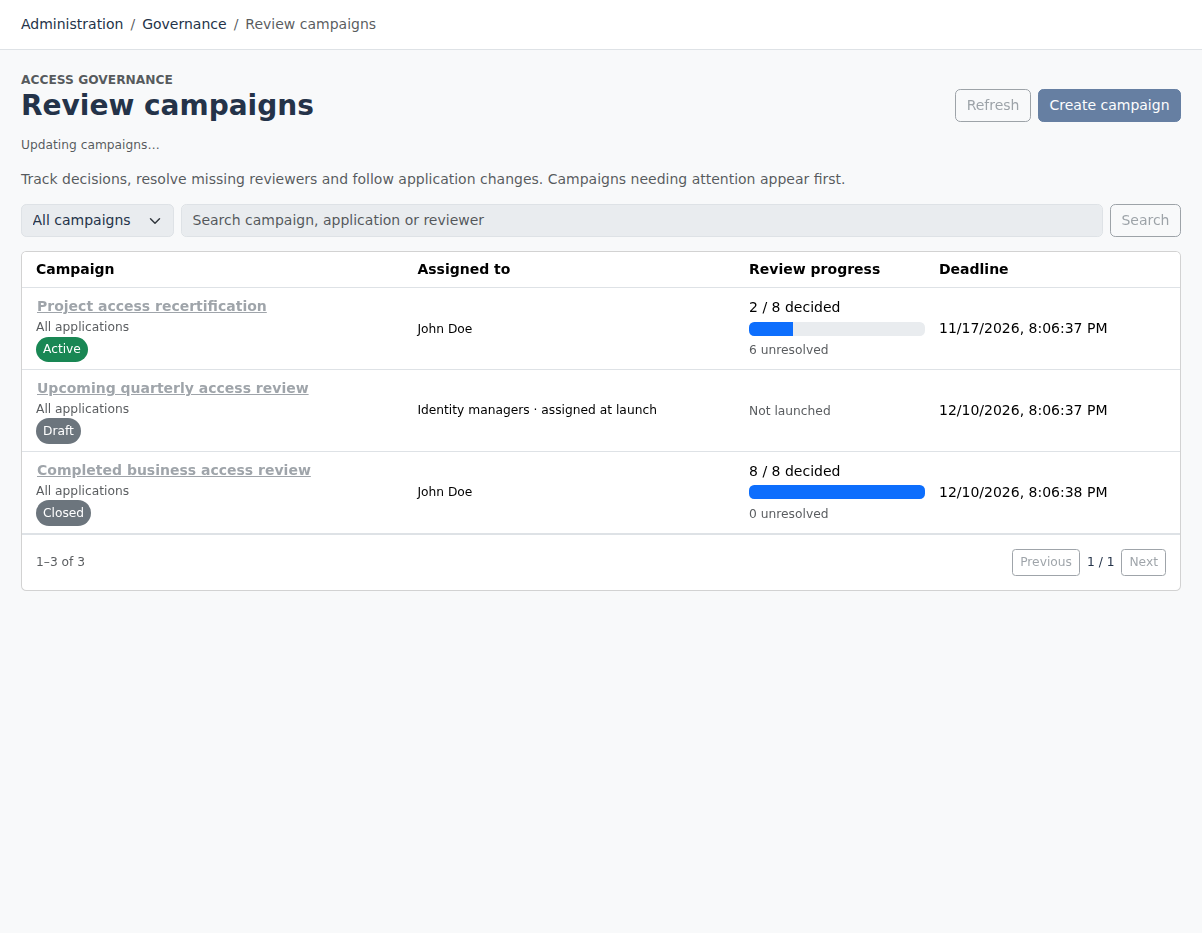
Launch a defined campaign.
Choose the scope, assign reviewers and set a deadline. Launch captures the review scope so decisions relate to the campaign’s selected assignments.
Record a deliberate decision.
A reviewer inspects John’s assignment and decides it is no longer needed. A revocation decision and its context remain part of the review evidence.
Check the actual removal.
Follow remediation into fulfillment. Another independent assignment may still justify the same entitlement: removing one grant is not necessarily removal of all effective access.
Try the questions in the public demo.
Browse the populated workspace without signing in. For a hands-on evaluation of configuration or writes, create your own workspace and use synthetic data and test applications.
YOUR NEXT STEP
See governance in practice.
Explore the public demo or bring your applications and governance questions to a guided conversation.